Remote Access with Tailscale & Caddy
Setting up a tailnet for remote access to my home lab and configuring Caddy for custom subdomains and HTTPS.
Tailscale
Before I even start, shout out to the Tailscale Team. The more I dig into Tailscale and what it has to offer the more impressed I am and the fact that I can use most of these features for free is the cherry on top. Not to mention the docuemtanation is amazing and they have a YouTube Channel that covers self-hosting and setting up Tailscale in numerous scenarios. If you’re ever stuck I’d check out their documentation or the YouTube channel.
If you’re not following along, in my last post I set up my Trilium Sync Server. Finally I can access my notes on all my devices and no matter what device I’m on, the changes are synced across them all. The only problem is this only works locally - that is what I’m going to be fixing today and we’ll be using Tailscale and Caddy to assist!
I would recommend checking out How Tailscale Works, but briefly, it’s using Wireguard to create a secure connection between devices on your tailnet over the internet. A tailnet is a network of all your devices with Tailscale and is inaccessible from the public internet. The only people with access to your tailnet are people you specifically invite in.
I created a new Linux container (LXC) on Proxmox called caddy and gave it the following specs:
1core.512 MBof memory.5 GBof storage.
Similar to the Trilium container, I made sure to edit the Options and check Start on Boot so the container always spins up. Tailscale provides an install script that will install and configure everything for you - https://tailscale.com/download.
1
2
3
4
5
apt install curl -y && apt update
curl -fsSL https://tailscale.com/install.sh | sh
Installation complete! Log in to start using Tailscale by running:

tailscale up
That’s it. Tailscale is now installed. To start the process of connecting it to my account I’ll execute tailscale up.
1
2
tailscale up
failed to connect to local tailscaled; it doesn't appear to be running (sudo systemctl start tailscaled ?)
This part stumped me for a bit. I could see that the service did fail to start with systemctl status tailscaled.
1
2
3
4
5
6
journalctl -u tailscaled
...
Sep 13 21:06:32 tailscale tailscaled[659]: Linux kernel version: 7.0.14-16-pve
Sep 13 21:06:32 tailscale tailscaled[659]: is CONFIG_TUN enabled in your kernel? `modprobe tun` failed with: modprobe: FATAL: Module tun n>
Sep 13 21:06:32 tailscale tailscaled[659]: tun module not loaded nor found on disk
...
As stated in the system logs, the tun module wasn’t loaded. I figured that was the problem and ran the command it gave me.
1
2
modprobe tun
modprobe: FATAL: Module tun not found in directory /lib/modules/7.0.14-16-pve
Another error. I was stumped on this for a bit because I watched videos and read other documentation of people installing Tailscale and it worked no problem. The difference - everyone wasn’t installing it within a container.
Remember at the beginning when I said Tailscale’s documentation was amazing? They have documentation and a video addressing this exact problem - https://tailscale.com/docs/features/containers/lxc/lxc-unprivileged. From the docs - “Unprivileged LXC containers do not have access to the networking resource needed for Tailscale to work.” I followed the docs and added a Device Passthrough with the Device Path set to /dev/net/tun. I then executed reboot so the changes would take effect.
Once the reboot completed I could now execute the tailscale up command. I’m going to redact the end portion of the link as I’m not sure how sensitive it is. All I needed to do was copy and past the link into my browser and log into my Tailscale account.
1
2
3
4
5
tailscale up

To authenticate, visit:

        https://login.tailscale.com/a/<redcated>
After authenticating I can now see the container in my Tailscale Console under Machines. I’ve obscured it in the screenshot below.

Now that Tailscale is working we can use tailscale serve to share a local service with our tailnet.
1
2
3
4
5
6
tailscale serve http://192.168.1.101:8080

Serve is not enabled on your tailnet.
To enable, visit:

         https://login.tailscale.com/f/serve?node=<redcated>
If you’ve never used Tailscale Serve before, you’ll need to enable it. I only enabled HTTPS certificates. From my understanding Tailscale Funnel is needed when you want to open your network to the public internet - something I definitely do not want to do.
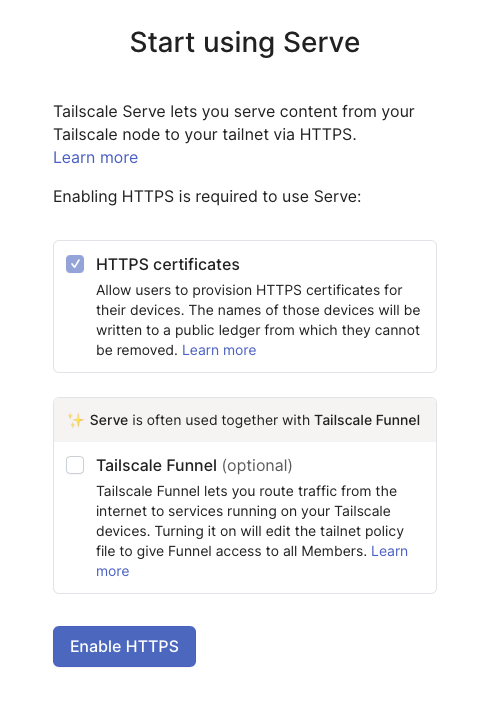
Tailscale is now serving http://192.168.1.101:8080, my Trilium Sync Server, to my tailnet. Any device on the tailnet, even when I’m away from home, is able to access the Sync Server. This is great and all, but Tailscale will only allow me to “serve” one service at a time. It’s also only accessible via a Tailscale domain *.ts.net which isn’t easy to type or remember. My goal is to enter trilium.mydomain.com and automatically be routed to the Trilium Sync Server without remember a IP address or port number. This is where Caddy will come in.
Caddy
Preamble
If you’re following along with this as a tutorial, you’ll need to purchase a domain name - the registrar doesn’t matter. Once you do that you can create an account for free with Cloudflare (assuming you didn’t purchase the domain from them) and then they will provide you with two DNS nameservers you can provide to your registrar telling them you want Cloudflare to manage your DNS.
Everything else you need will be covered below! I just wanted to throw that tidbit in.
Setting up Caddy
Setting up Caddy itself is super easy, but getting the Cloudflare DNS portion working was an absolute pain and I felt the documentation and repository overcomplicated things. Luckily I found an amazing blog post (YouTube link) that walked through setting up Caddy and Cloudflare DNS. I followed up until Step 7. I ignored the Pi-Hole section as I don’t have Pi-Hole and this would only help locally.
After following the guide I was able to execute the following two commands and confirm I finally have everything working properly!
1
2
3
4
5
./caddy version
v2.11.4

./caddy list-modules | grep cloudflare
dns.providers.cloudflare
Cloudflare DNS Record
I’m not going to cover creating a Cloudflare API Token as the blog post above already covers it perfectly. It also demonstrates how to put the key into a .env file to avoid having the API Token in the Caddyfile.
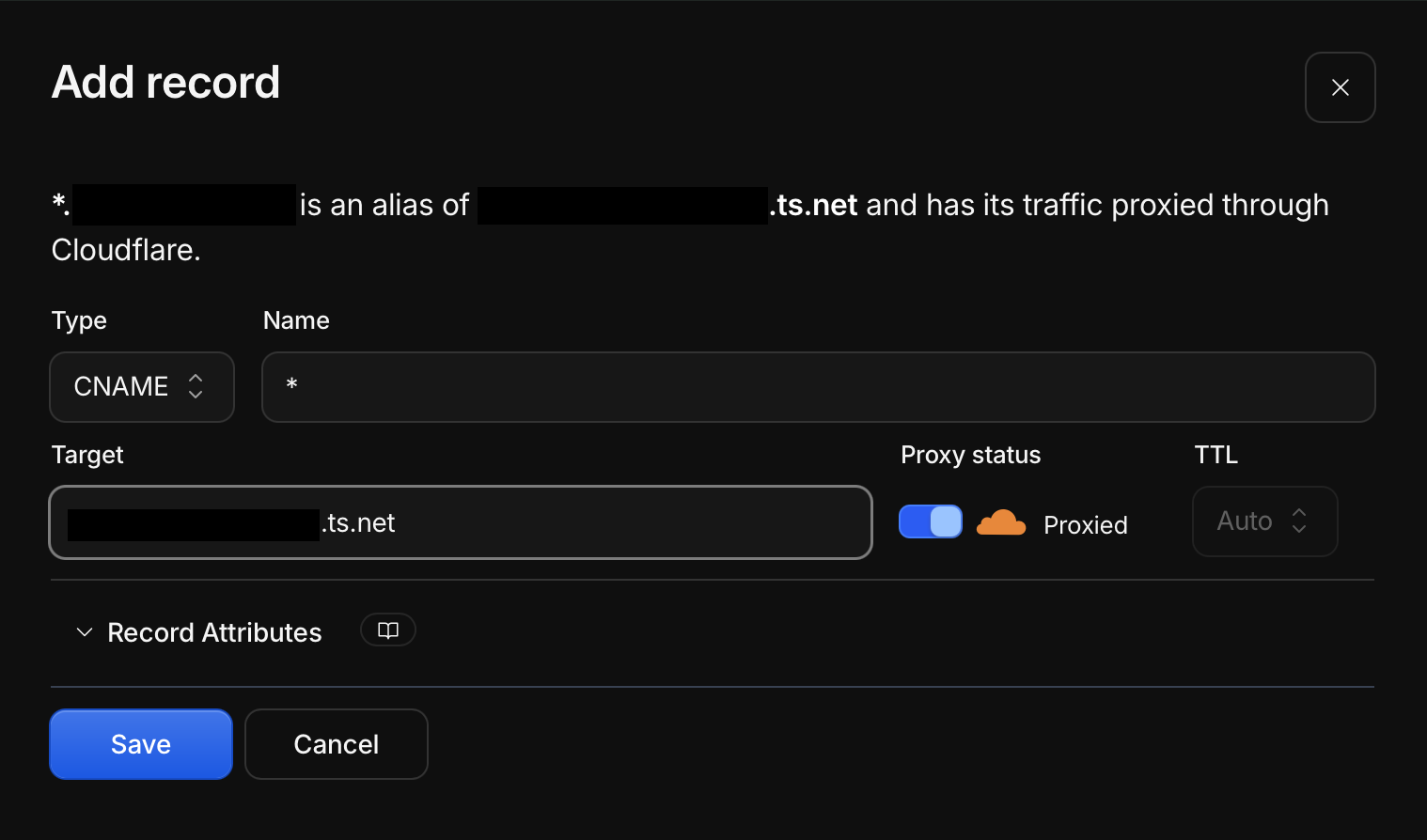
What the blog post doesn’t cover is creating a DNS record because they’re using Pi-Hole. In my Cloudflare DNS settings, I created a CNAME record pointing * to the FDQN of the caddy machine in my tailnet. This will look like *.mydomain.com CNAME caddy.*.ts.net. In other words any DNS request to a subdomain of mydomain.com will be redirected to the Caddy service - which I’ll set up next.
Caddyfile
I created the /etc/caddy/Caddyfile file with the following configuration.
1
2
3
4
5
6
7
8
9
10
11
12
13
14
15
16
17
18
19
# Proxmox
pve.mydomain.com {
    tls {
        dns cloudflare {env.CLOUDFLARE_API_TOKEN}
    }
    reverse_proxy 192.168.1.240:8006 {
        transport http {
            tls_insecure_skip_verify
        }
    }
}

# Trilium Sync Server
trilium.mydomain.com {
    tls {
        dns cloudflare {env.CLOUDFLARE_API_TOKEN}
    }
    reverse_proxy 192.168.1.101:8080
}
With the Caddyfile configured, I started the service. However, when I attempted to visit trilium.mydomain.com, I was met with a Error 1016 from Cloudflare. I thought to myself what I could’ve done wrong. I followed the steps above exactly. Then it hit me, the videos I watched earlier mentioned it could take a while for Cloudflare to update the DNS records.
Lo and behold when I did dig mydomain.com no CNAME record was there. It’s now just a waiting game for that to be updated.
It’s Always DNS
After almost 12 hours I still saw no CNAME record. Although it can take up to 24 hours, I did reach out on Tailscale’s Discord server and someone mentioned that I could face issues with CNAME records so I decided to switch to an A record - *.mydomain.com A <IP> where <IP> is the IP address to Caddy on my tailnet.
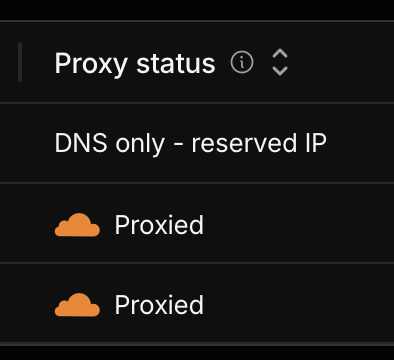
Additionally, I noticed that I never turned off the Proxied status on my new record. My records now says DNS only - reserved IP and when I hover over it - “This record points to a private or reserved IP address that Cloudflare cannot proxy.”
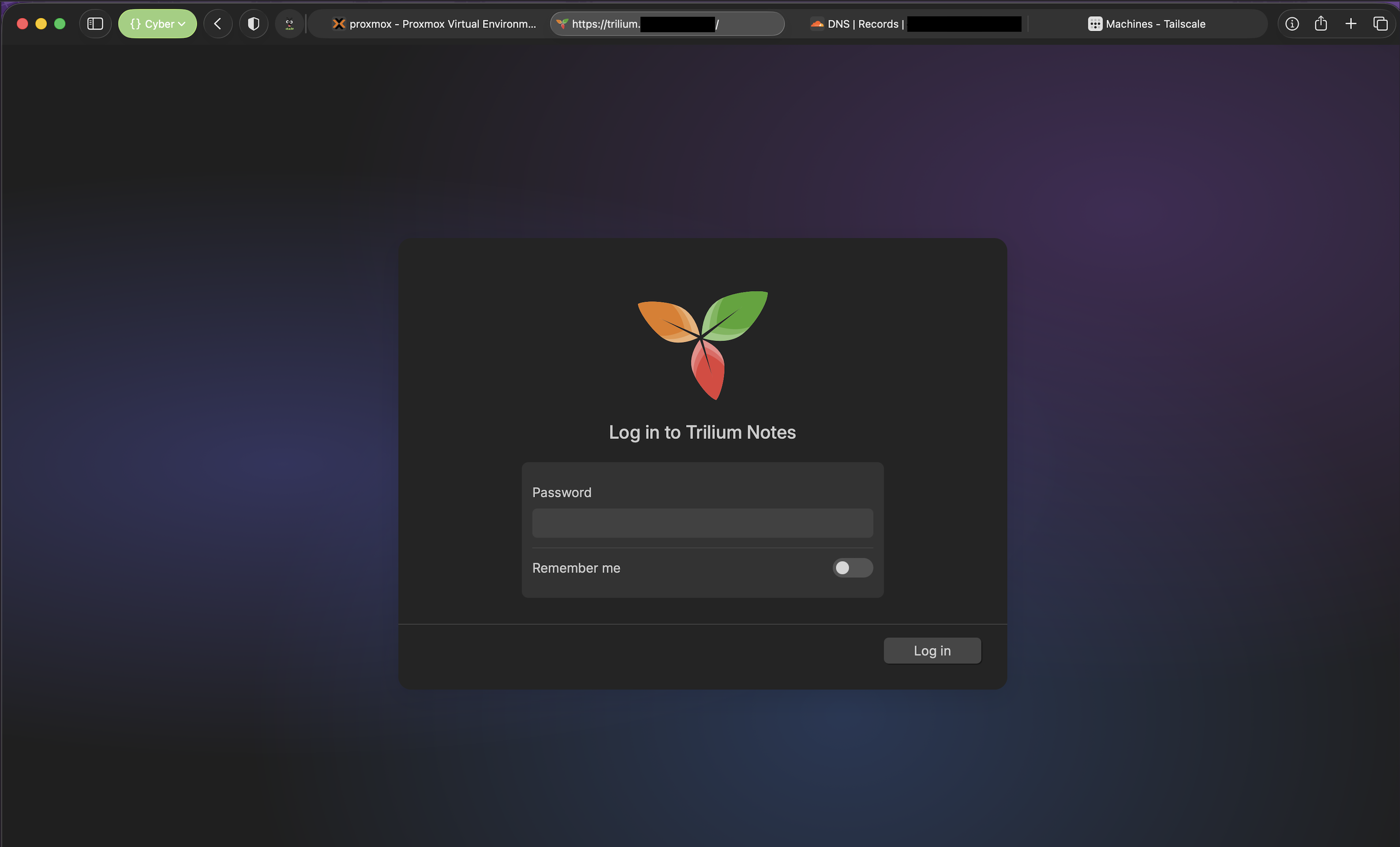
Shortly after I entered these changes into Cloudflare, I executed dig trilium.mydomain.com and was able to see the new record - trilium.mydomain.com. 300 IN A <Caddy IP Address>. When I navigate to trilium.mydomain.com it works! No need to remember IPs anymore and since we’re using Caddy as well, all services are now using HTTPS.
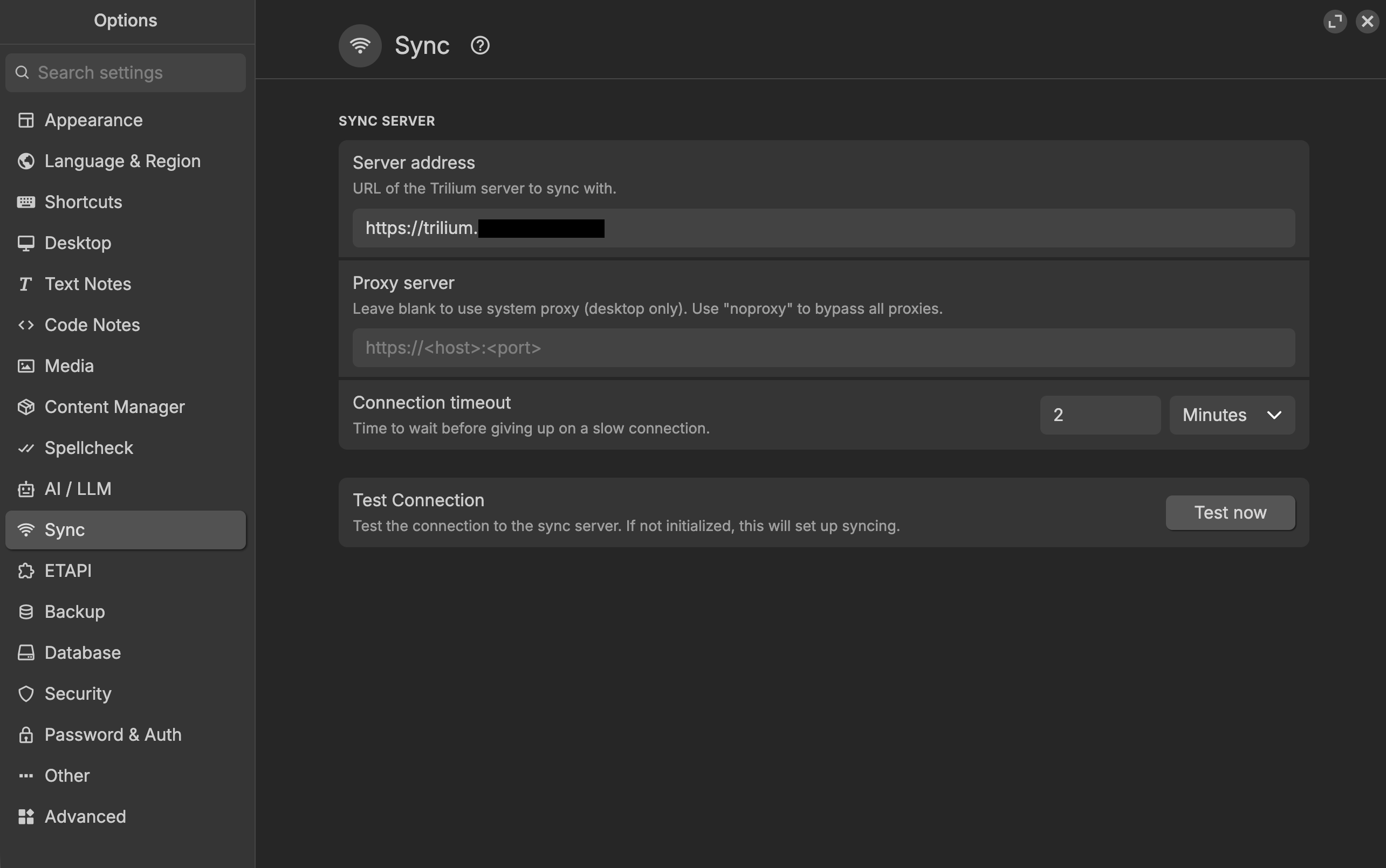
One final thing I need to do is edit my Trilium Sync Server settings within my Mac’s desktop application. The settings are currently pointed at http://192.168.1.101:8080 which does work, but only when I’m home. To get it to work remotely, I entered the subdomain I put in my Caddyfile - https://trilium.mydomain.com. I clicked Test now and confirmed the connection is working as expected
Finally! No more needing to pull and push to GitHub every time I want to switch devices or look at my notes when I’m away from home.