Deploying a Trilium Sync Server
How to set up a Trilium Sync Server and sync notes across multiple devices with Trilium.
If you didn’t read my Starting My Home Lab post, we’ll be using Synchronization from the official Trilium documentation to set up a Sync Server. Again, the goal is to be able to sync my notes across devices without having to pull and push to GitHub.
Proxmox Container
In the top right of the Proxmox console, I’m going to click on Create CT to create a container.

I’m going to be configuring my Trilium Sync Server with the following specs:
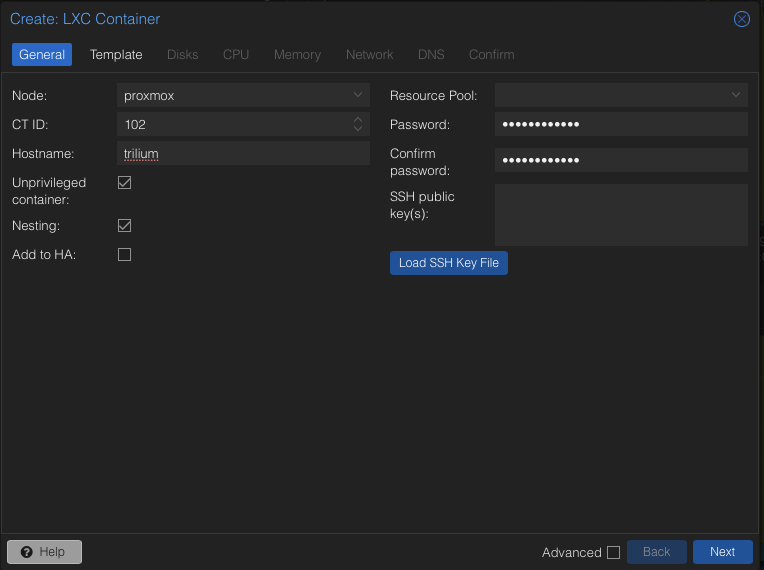
- General
- Hostname:
trilium - Enter a secure password for root access.
- Hostname:
- Template
- Storage:
local - Template:
debian-13-standard_13.6-1_amd64.tar.zst
- Storage:
- Disks
- Storage:
local - Disk size: I figured
10 GBwas a good start.
- Storage:
- CPU
- Cores:
3
- Cores:
- Memory
- Memory:
3814 MB. - Swap:
512 MB(default).
- Memory:
Trilium themselves don’t provide any system recommendations, so I figured I’d start here and adjust accordingly based on the needs of Trilium and other services I want to run on this Mini PC.
For the Network tab, I assigned a static IP so that I would always remember where the server is. The final configuration has been placed below:
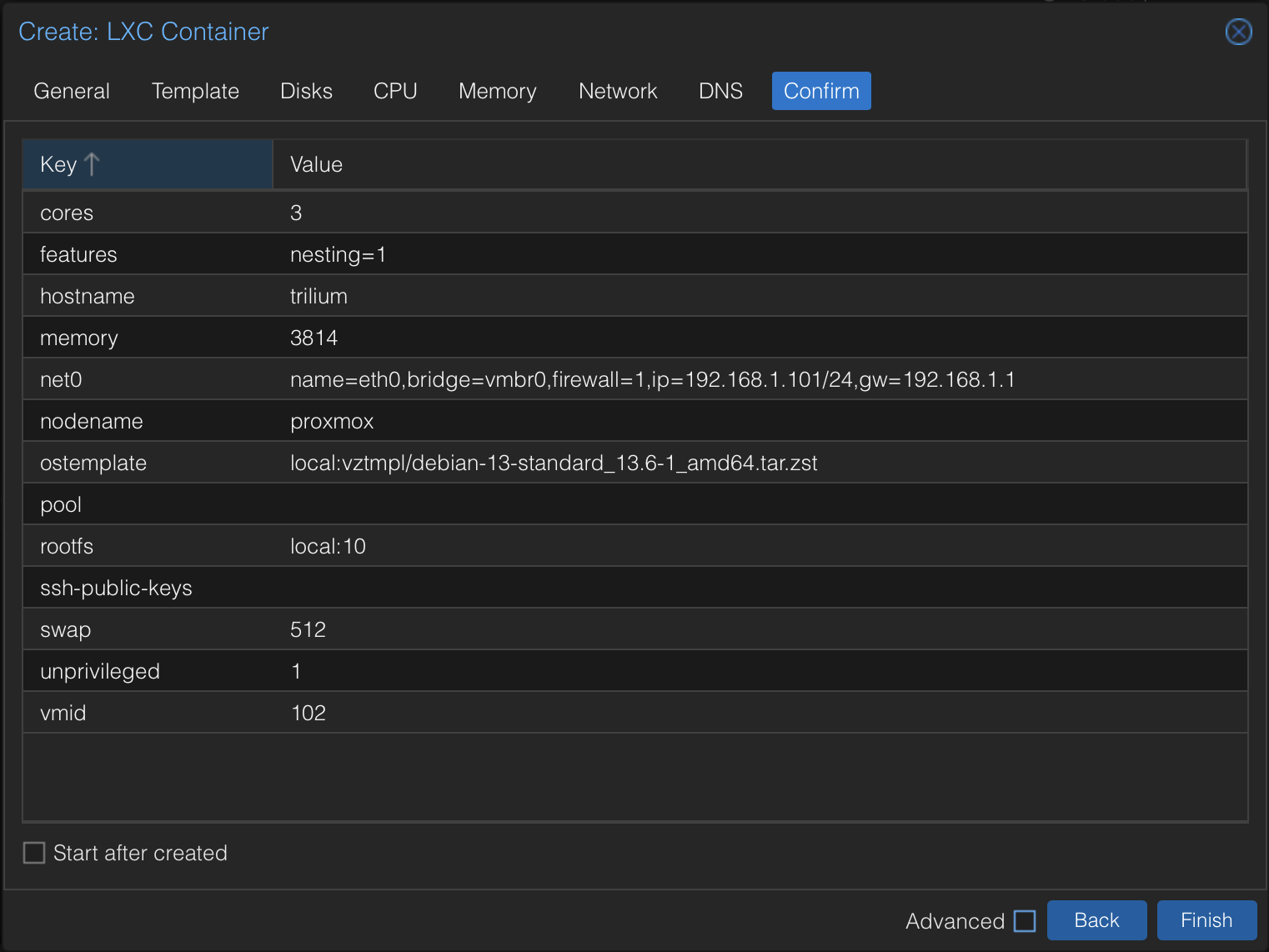
Setting up Trilium
After clicking on Finish, I can see my new container 102 (trilium). I start the server up with the Start button in the top right and then click on Console to get a shell on the container.
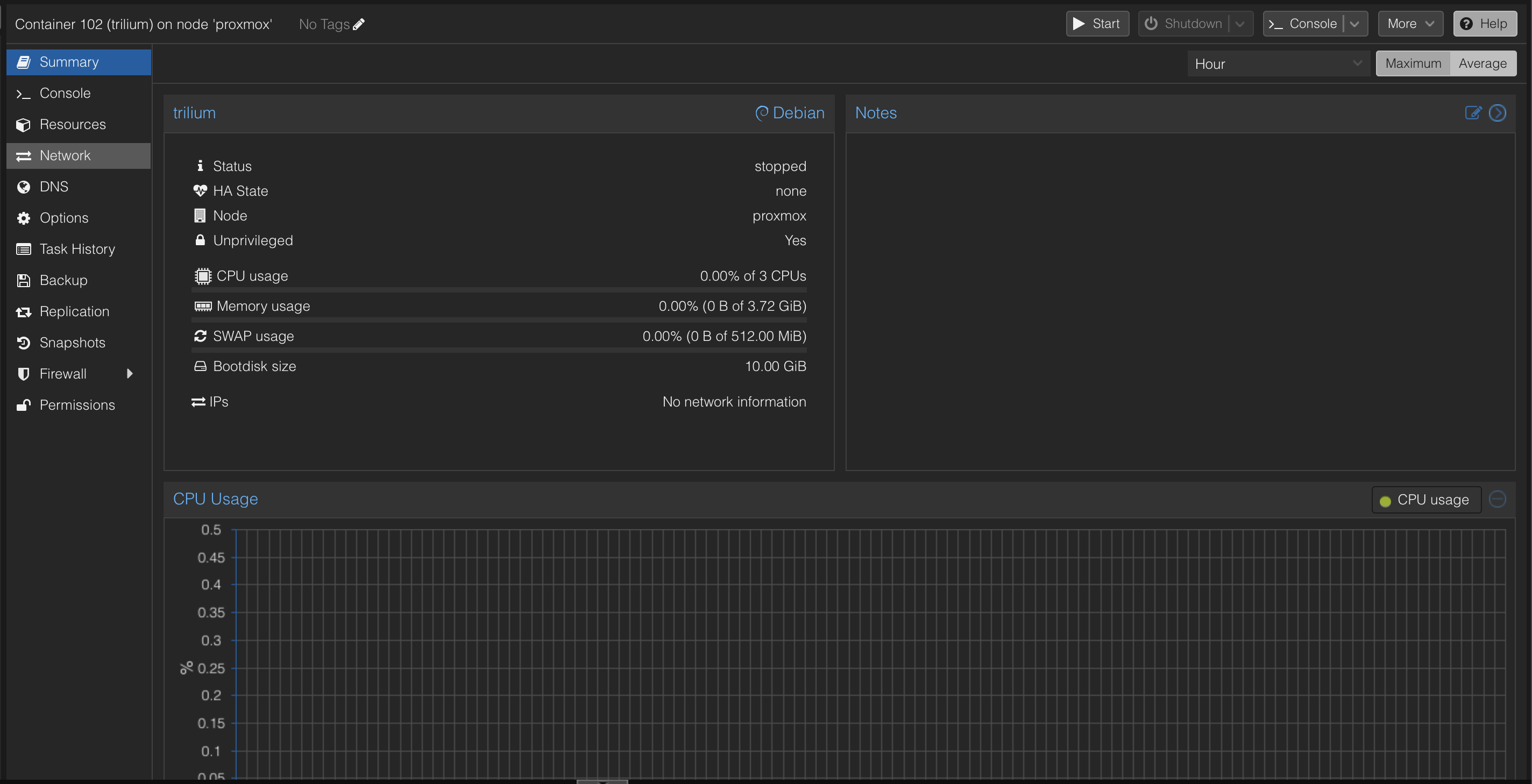
After logging in, I ran apt install curl -y && apt update. This ensure everything is up to date and the curl tool is installed. I’m going to be following this documentation from Trilium on setting up a server.
1
2
3
4
curl -L -O https://github.com/TriliumNext/Trilium/releases/download/v0.105.0/TriliumNotes-Server-v0.105.0-linux-x64.tar.xz
tar -xf TriliumNotes-Server-v0.105.0-linux-x64.tar.xz
mv TriliumNotes-Server-0.105.0-linux-x64 /opt/trilium
cd /opt/trilium/
With everything installed, I just need to make a service so that Trilium is always running. Luckily, the documentation gives you everything you need for this as well under the Configure Trilium to auto-run on boot with systemd section. I prefer vim over nano, so I did a quick apt install vim -y.
1
2
3
4
5
6
7
vim /etc/systemd/system/trilium.service
# Paste the config they give you
systemctl enable --now -q trilium
systemctl status trilium
* trilium.service - Trilium Daemon
     Loaded: loaded (/etc/systemd/system/trilium.service; static)
     Active: active (running) since Sat 2026-09-12 18:28:27 UTC; 6s ago
The service is running! I ran ss -tunlp and confirmed the service was running on port 8080.
1
2
3
ss -tunlp
Netid   State    Recv-Q   Send-Q     Local Address:Port      Peer Address:Port
tcp     LISTEN   0        511              0.0.0.0:8080           0.0.0.0:*
Navigating to the site reveals the configuration page.
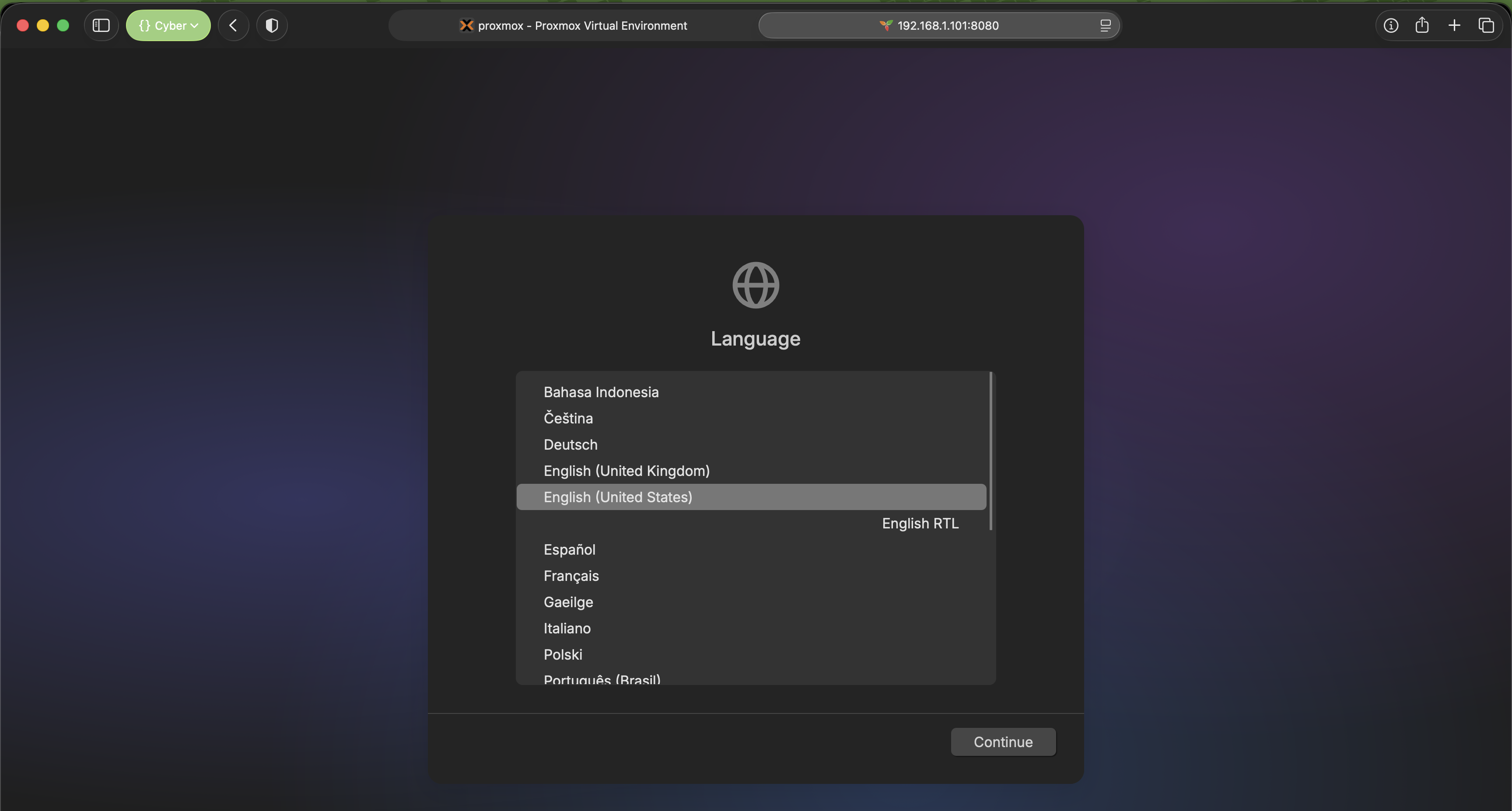
Moving Notes
I already had the desktop application on my Kali VM as I was in the process of converting notes over to Trilium. I jumped right to Synchronizing a Desktop Instance with a Sync Server in the documentation which states “This method is used when you already have a desktop instance of Trilium and want to set up a sync server on your web host.”
I added my server IP in the Sync settings of the Trilium desktop application, but as soon as I clicked Test now I got the following error:
1
2
3
Sync server handshake failed, error: Request to GET
https://192.168.1.101:8080/api/setup/
status failed, error: Error: net::ERR_SSL_PROTOCOL_ERROR
The documentation wasn’t too helpful here.. I also forgot to take a screenshot of this next step. All I had to do was click on the “Connect a desktop app” option on the web application. After I clicked on that, I went back to the desktop application and clicked on Test now again and it worked! Back on the web application, I was prompted for a password to secure the notes.
After entering a strong password I was able to log in and everything worked! I can now access my Trilium notes via the web.
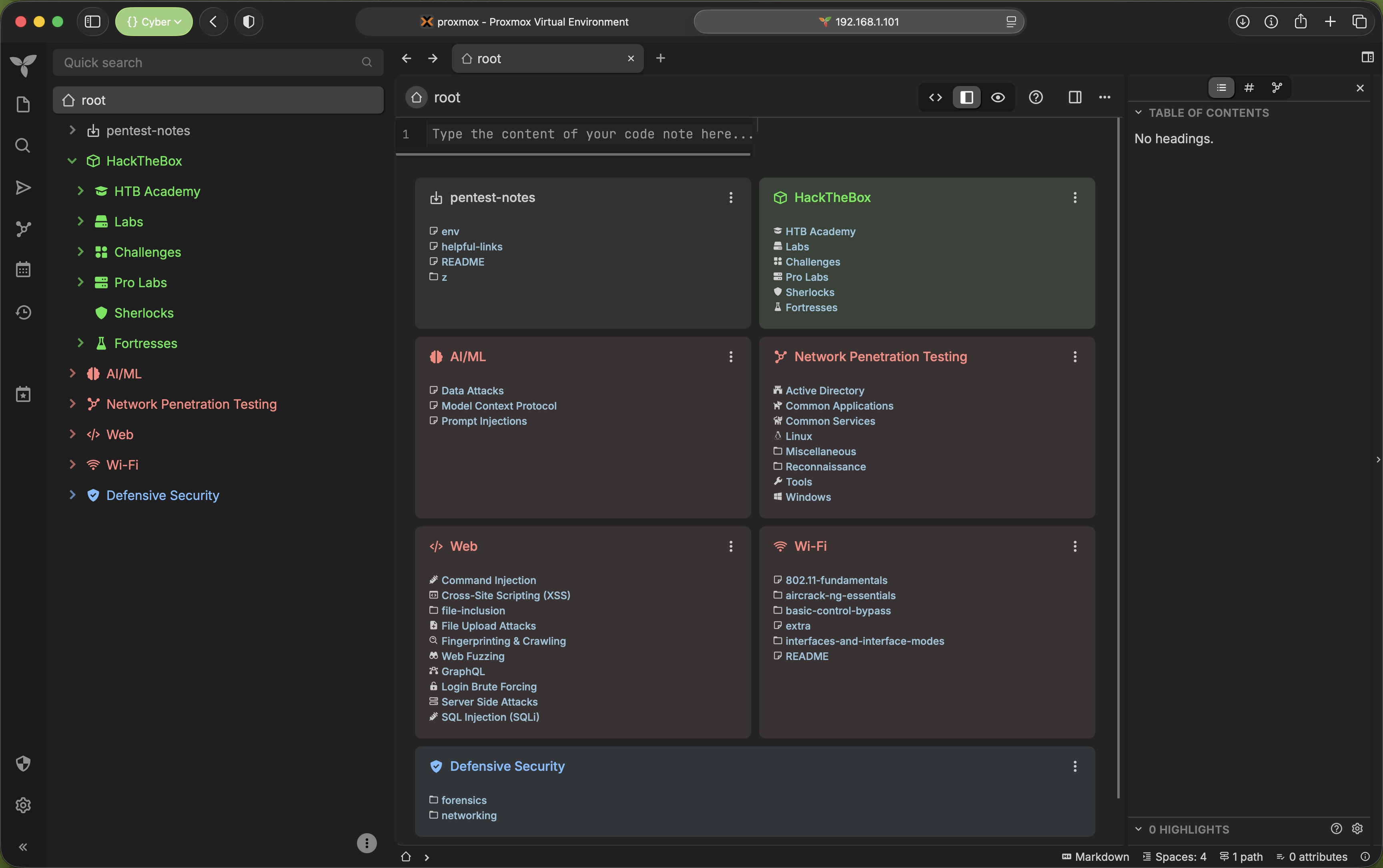
This alone is already better than Obsidian. However, I’m not aware of the limitation of the web application vs the desktop application. It’s time to download Trilium on my Mac and see if the Sync Server is really working. I won’t bore you with the details, but you can download the desktop application from https://triliumnotes.org.
Confirming Multi-Device Access
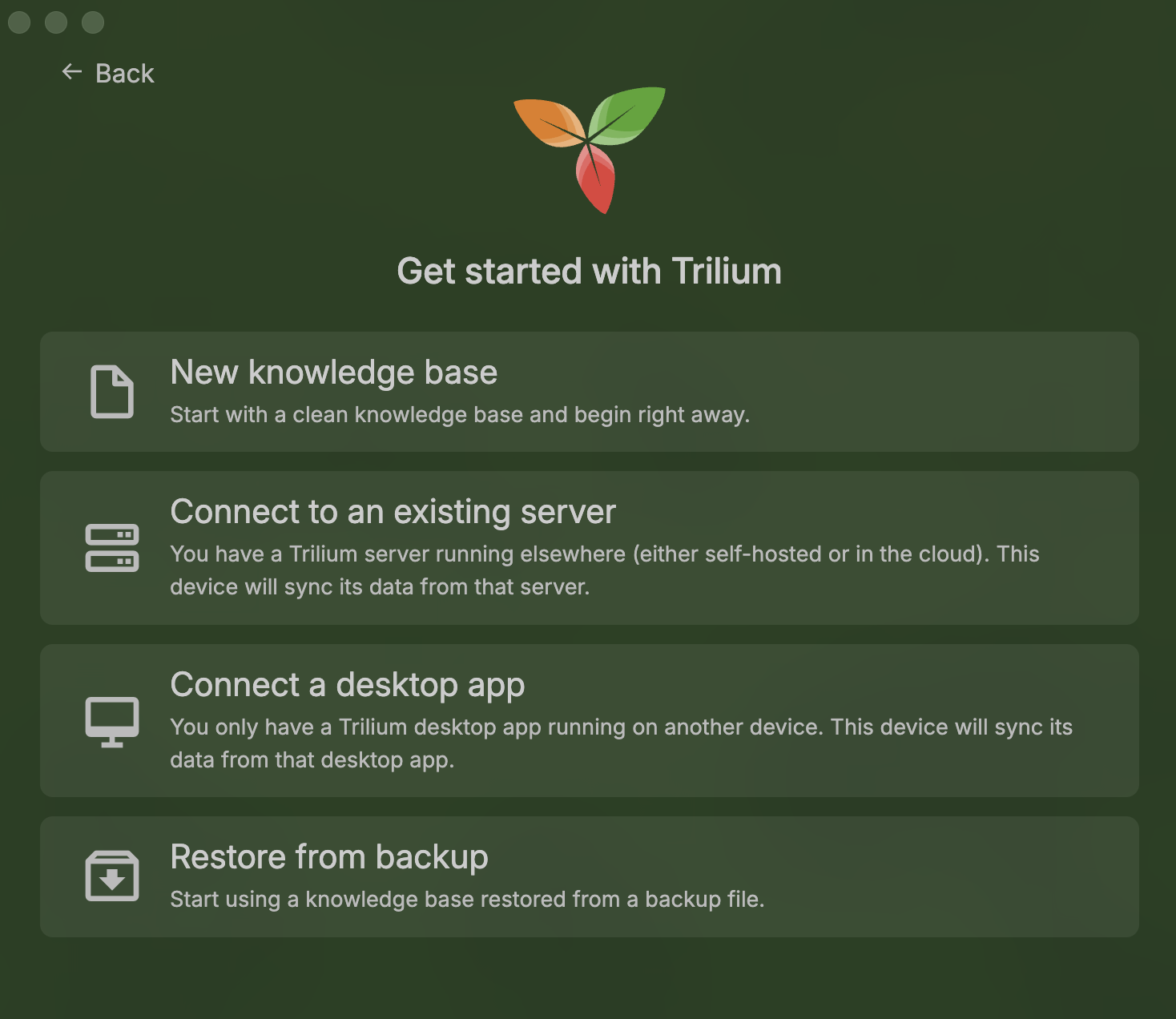
This time I’ll select “Connect to an existing server” and enter the server’s local IP address and the password configured during setup. After clicking on Finish setup, the local application on my Mac is working.
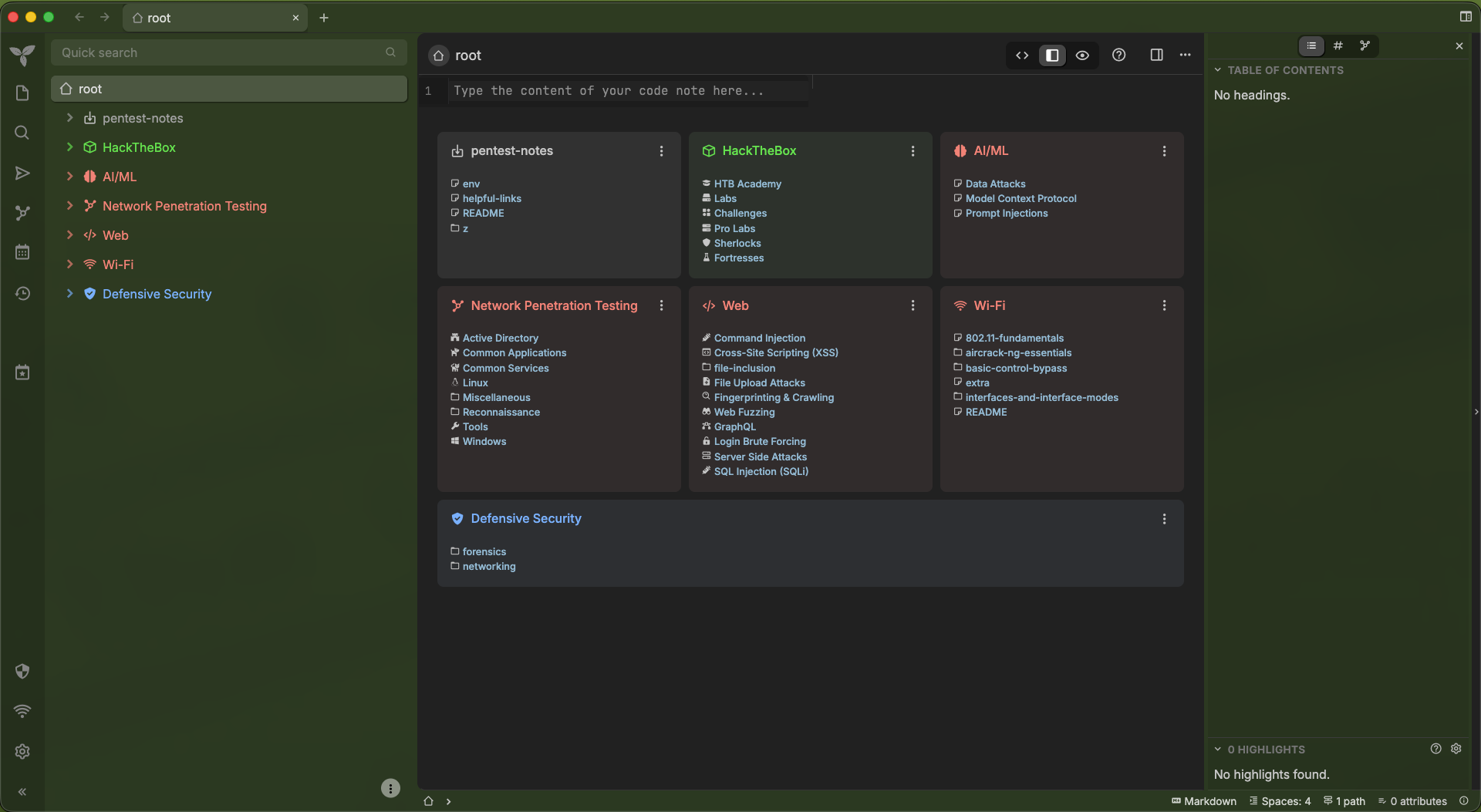
There is just one last thing to do: I want to verify that changes on my Mac get pushed to the Sync Server and are visible on the Kali VM, and vice versa. I created the following note on my Mac.
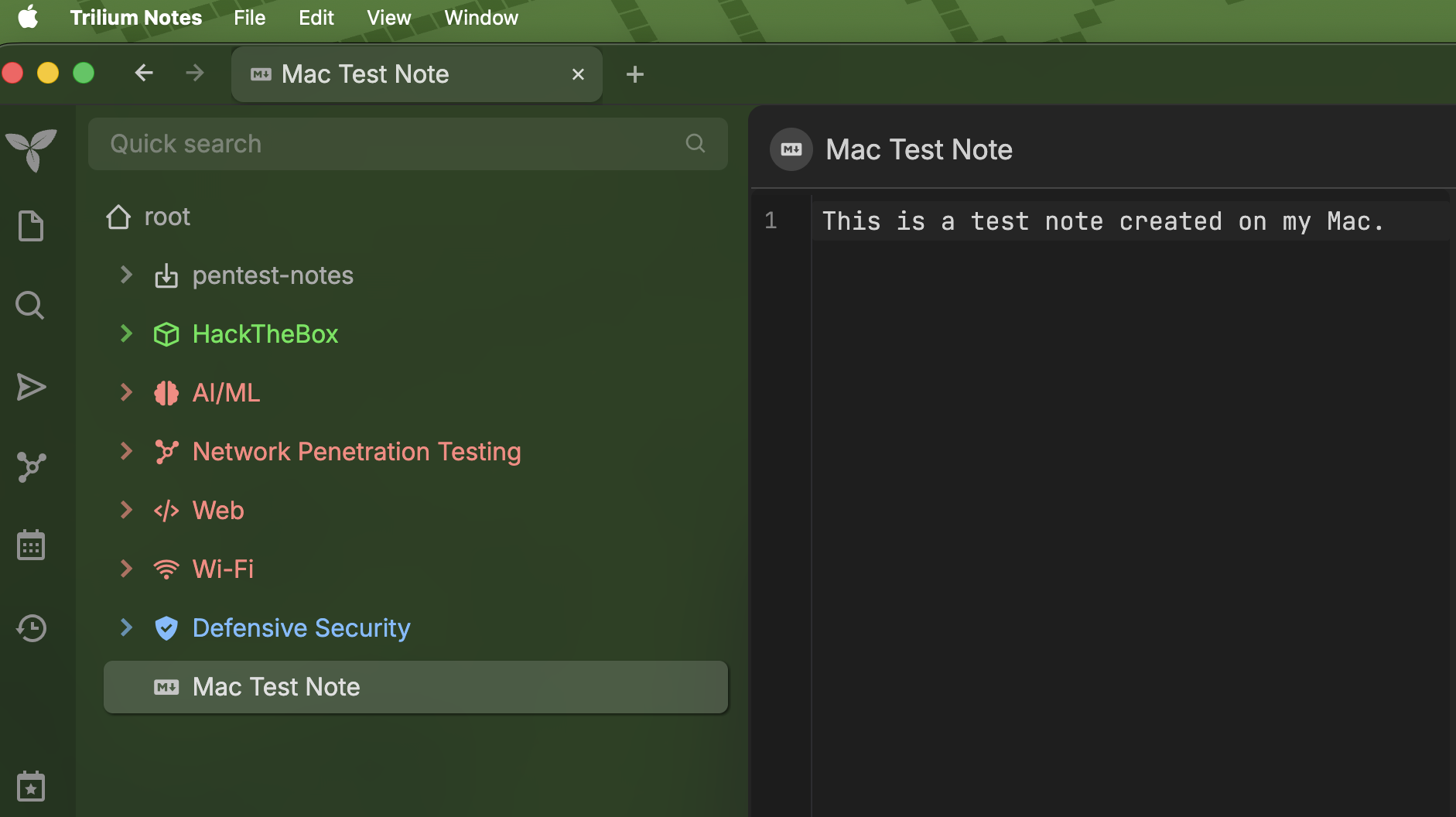
And after about a minute or two
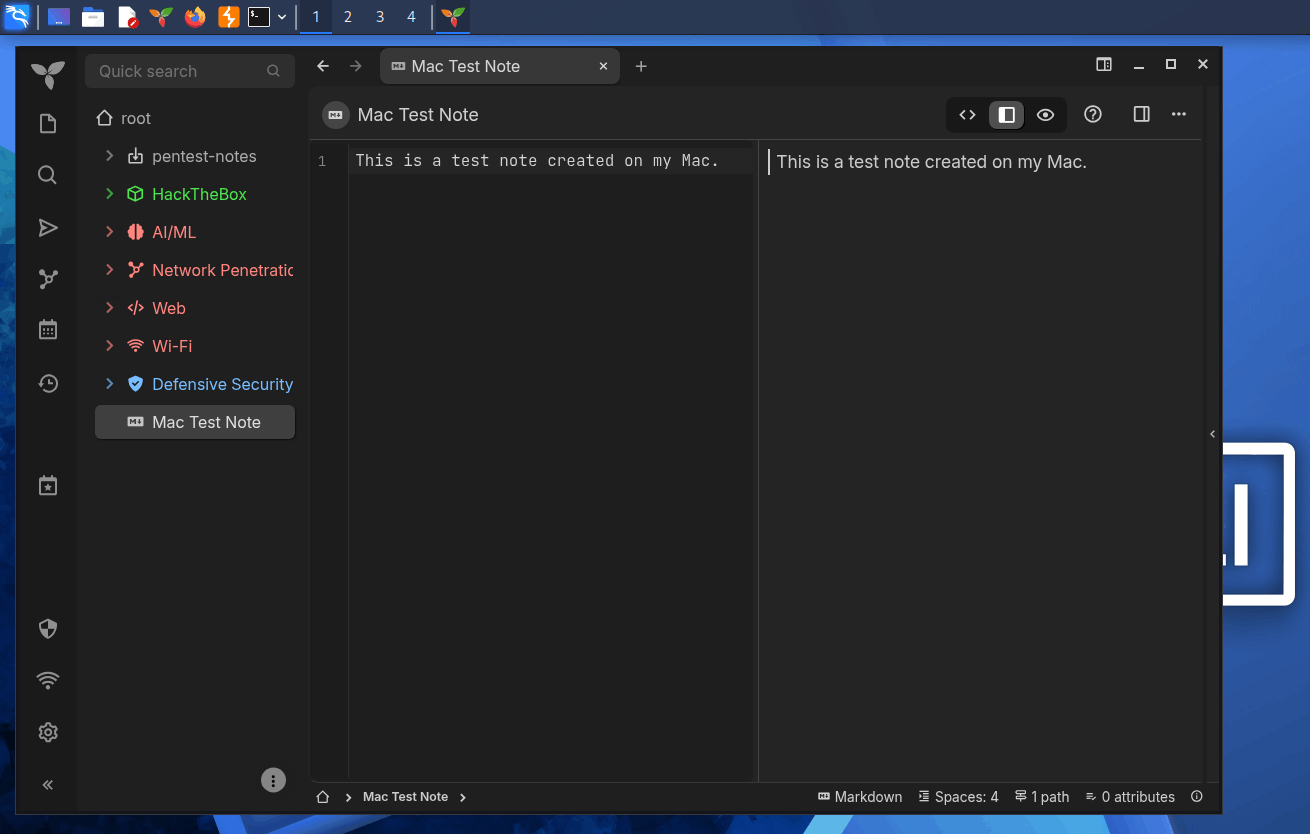
Everything works! Trilium is official set up! In future blog posts, I will discuss why you should switch to Trilium, how to further secure this Trilium instance, and how I can access these notes remotely.
System Resource - Update
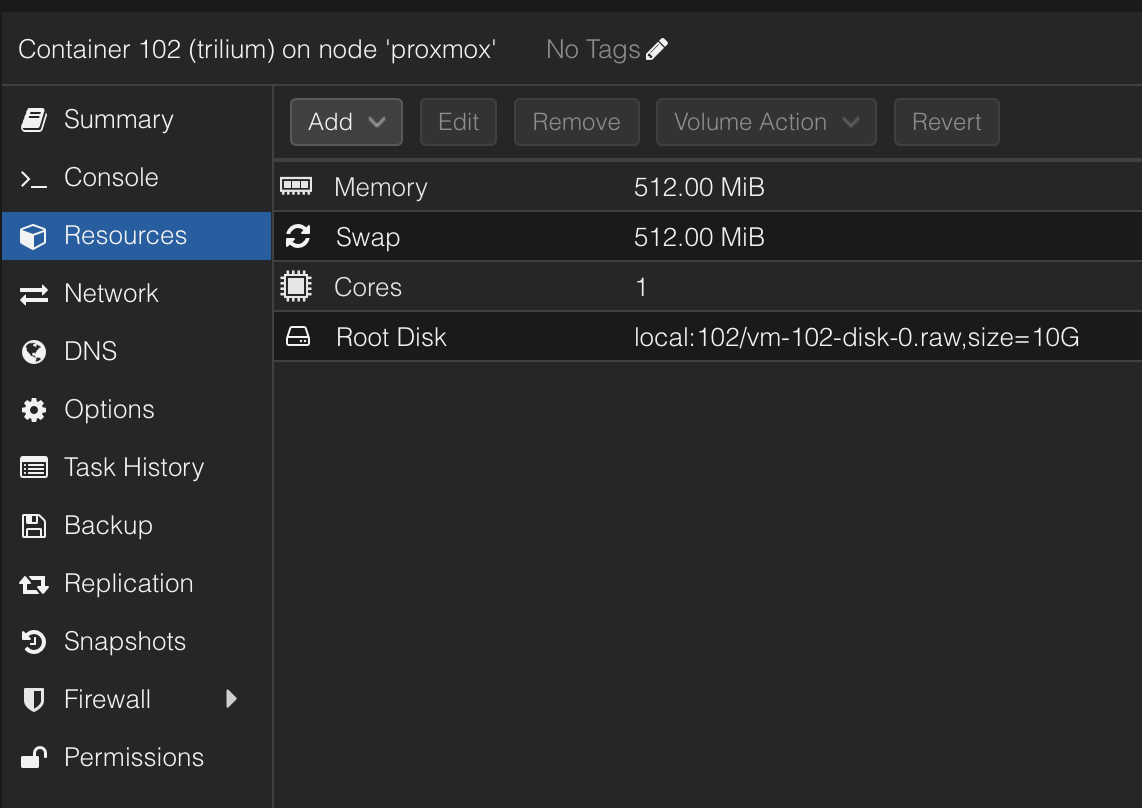
Five hours later me here! I’ve been monitoring the server’s system usage and I definitely over estimated. For CPU usage, there has been a few spikes, but those spikes are still only using 0.07% of what I’ve given it (most of the time it averages around 0.009%). For memory usage, it seems to sit just above 300 MB.
I decided to switch to 1 core and 512 MB for memory. I will update here if anything changes.
Configuration Changes - Update 2.0
I recently had to do a reboot for my Proxmox server and Trilium didn’t spin up automatically. The first problem is that when Proxmox rebooted the container itself never started itself again. To fix this I clicked on my 102 (trilium) container -> Options -> Start at boot -> Edit. Click the checkmark and the container will now always start.
But that wasn’t the only problem. When I logged into the Console and executed systemctl status trilium the service wasn’t running. For me (and this was definitely my fault) when I copied the trilium.service file provided in the documentation, it commented out the following three lines:
1
2
3
4
#Restart=always
#
#[Install]
#WantedBy=multi-user.target
Uncommenting these three lines and executing the following two commands to reload the service and enable it.
1
2
3
systemctl daemon-reload
systemctl enable --now trilium
Created symlink '/etc/systemd/system/multi-user.target.wants/trilium.service' -> '/etc/systemd/system/trilium.service'.
I also executed systemctl status trilium just to confirm it was running and enabled as expected.
1
2
3
4
systemctl status trilium
* trilium.service - Trilium Daemon
     Loaded: loaded (/etc/systemd/system/trilium.service; enabled; preset: enabled)
     Active: active (running) since Sun 2026-09-13 16:07:10 UTC; 41min ago